






Sign Android Package Kit (APK) files with ApkSigner using PKCS#11 Library
You’re probably wondering why we would sign an APK, right? A digital signature is a method for demonstrating the authenticity of a digital file, such as a document, executable file, or, in this case, an APK, which is just a collection of files. We can practically guarantee that whoever uses an APK will receive a verifiable copy of the file they anticipated by signing the APK. Since no one else can alter this file while keeping the same signature, there are clear security benefits.
Now, to achieve this, we are integrating PKCS#11 libraries, which enable us to use enhanced security by storing keys on Hardware Security Modules (HSMs) or some kind of Key Vault. This article is going to walk you through the process of using APKSigner with our (Encryption Consulting’s) PKCS#11 Wrapper on Ubuntu and MacOS for your APK signing operations.
Signing an APK with apksigner and PKCS#11, in short: run
apksigner sign --provider-class sun.security.pkcs11.SunPKCS11 --provider-arg <pkcs11properties.cfg> --ks NONE --ks-type PKCS11 --ks-pass pass:<password> --ks-key-alias <alias> --in <input.apk> --out <signed.apk>, then verify withapksigner verify -verbose <signed.apk>. The private key stays in the HSM throughout; only a signing request crosses the PKCS#11 interface.
Key Takeaways
- The provider class name and –ks-type value are always sun.security.pkcs11.SunPKCS11 and PKCS11, exactly, regardless of OS; don’t substitute “PKCS#11” with the hash character into either, since neither Java class names nor apksigner’s keystore-type argument accept it.
- macOS requires an explicit –add-exports JVM flag before the apksigner.jar invocation that Windows and Ubuntu don’t need, because Apple’s JDK packaging restricts the internal PKCS#11 module by default.
Environment Matrix
| Component | Windows | Ubuntu | macOS |
|---|---|---|---|
| Java version | Java 22 (Oracle) | Java 8 (OpenJDK) | Java 17 (Homebrew) |
| Android build-tools | 34.0.0 via sdkmanager.bat | 34.0.0 via sdkmanager | 34.0.0 via sdkmanager |
| Invocation style | apksigner.bat directly | apksigner directly | java –add-exports … -jar apksigner.jar (direct apksigner invocation restricts the PKCS#11 module) |
| CodeSign Secure version | v3.01 | v3.01 | v3.01 |
| Additional dependencies | None beyond Java and SDK tools | liblog4cxx-dev, curl | liblog4cxx-dev (via log4cxx), curl |
Overview of PKCS#11 Integration
When it comes to APK signing operations, PKCS#11 APIs play a very important role. PKCS#11 is a very famous and widely adopted standard API that enables software to interact very smoothly with HSMs. Integrating PKCS#11 into APKSigner will allow you or your developers to sign Android APKs while ensuring that the private keys never leave a secure environment (HSMs). Your keys are protected from possible online threats in this way.
The PKCS#11 Wrapper from Encryption Consulting will give you an extra degree of dependability and trust. We guarantee outstanding performance, seamless integration, and—above all—client-side hashing. With the help of our PKCS#11 Wrapper, you can:
- Protection against Key Leakage: Your organization’s private keys never leave the HSM. All of the cryptographic operations are performed directly within the HSM.
- Hardware-Backed Security: All of your signing operations are going to be conducted in tamper-resistant hardware, which will ensure both physical and logical security. However, you have to comply with the CA/B Forum’s June 2023 guideline and have a FIPS 140-2 Level 2 HSM on your side.
- Enhanced Trust for your Applications: Your signed APKs will fulfill Android’s security requirements and ensure that the end-user has confidence in your application’s integrity.
- High-Performance Signing with Client-Side Hashing: Our PKCS#11 Wrapper supports client-side hashing, ensuring that your APK’s integrity remains intact. This will also drastically improve the speed of the signing process, making it ideal for your organization’s high-throughput scenarios like CI/CD pipelines.
Configuration of PKCS#11 Wrapper on Windows
Installation on Client System
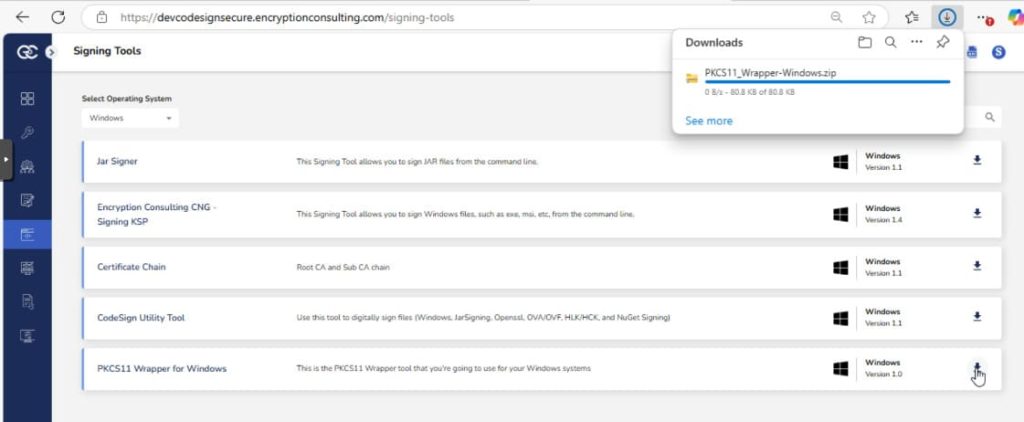
Step 1: Go to EC CodeSign Secure’s v3.01 Signing Tools section and download the PKCS11 Wrapper for Windows.
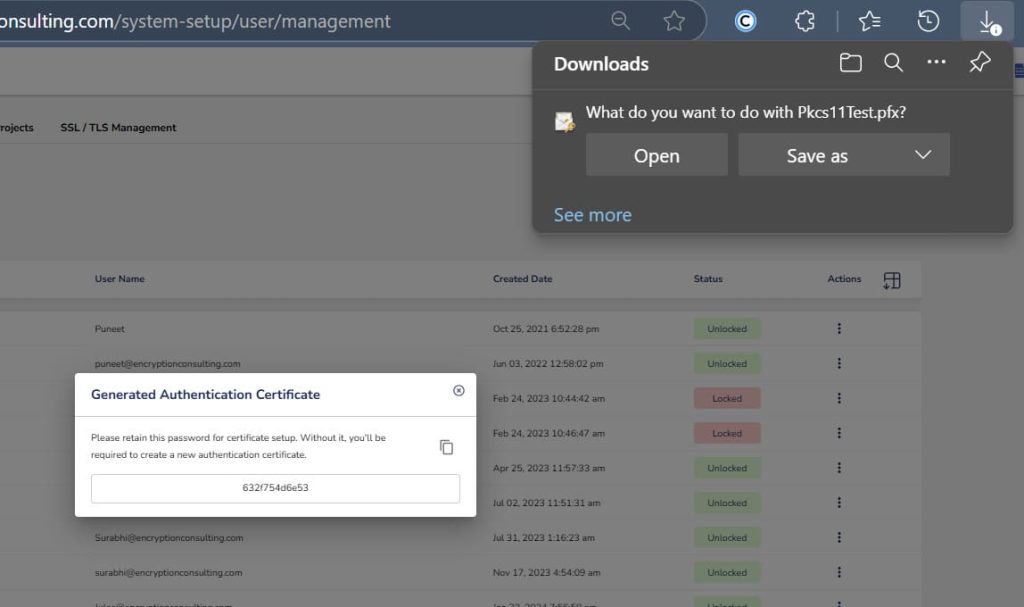
Step 2: After that, generate a P12 Authentication certificate from the System Setup > User > Generate Authentication Certificate dropdown.
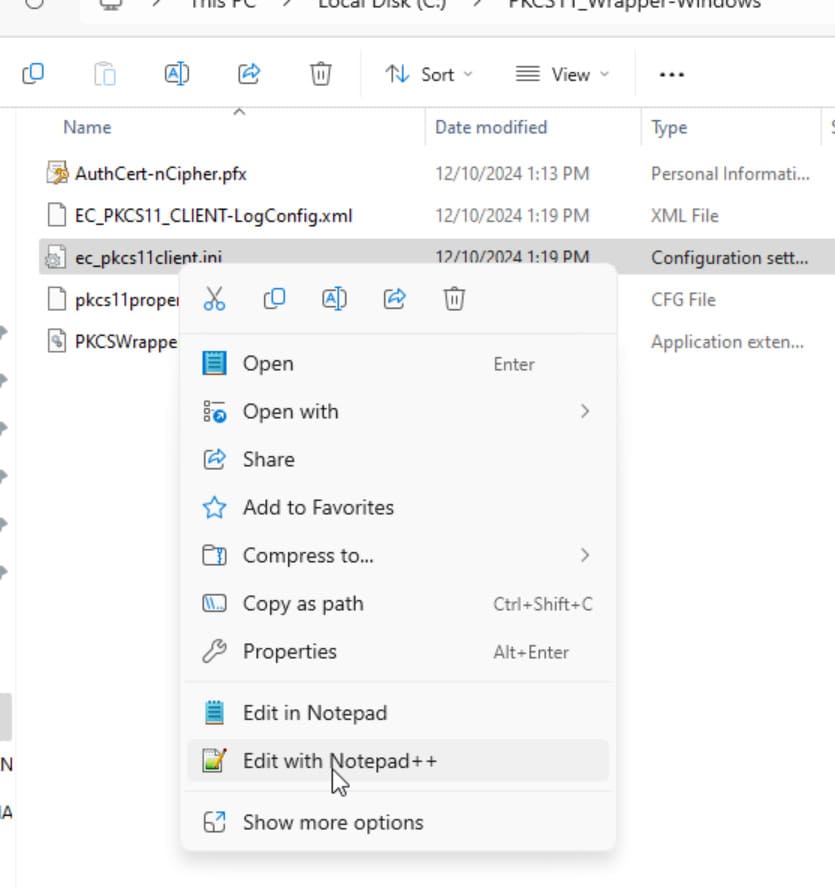
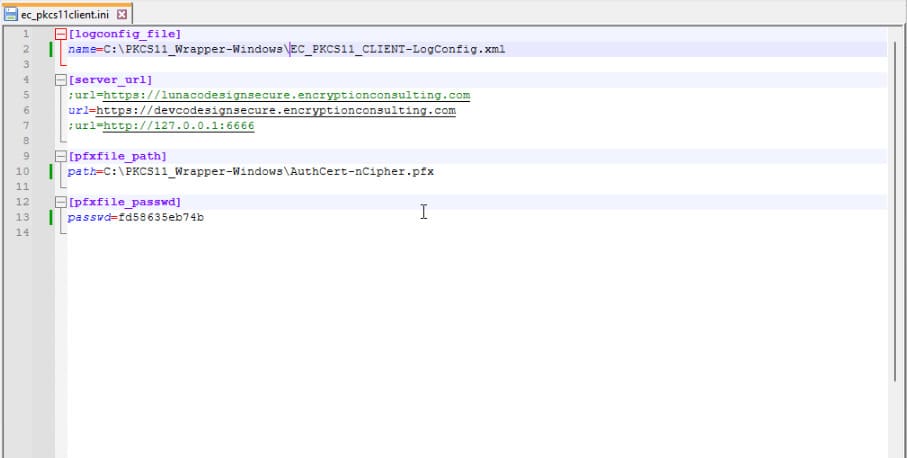
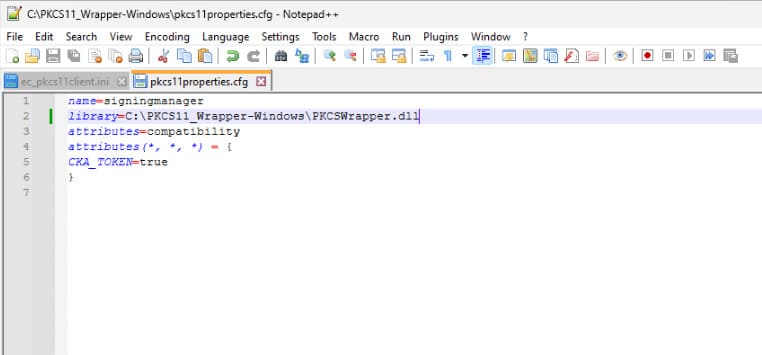
Step 3: Go to your Windows client system and edit the configuration files (ec_pkcs11client.ini and pkcs11properties.cfg) downloaded in the PKCS11 Wrapper.
Prerequisites for Windows System
Now, let’s install some prerequisites in your client system to run the PKCS11 Wrapper.
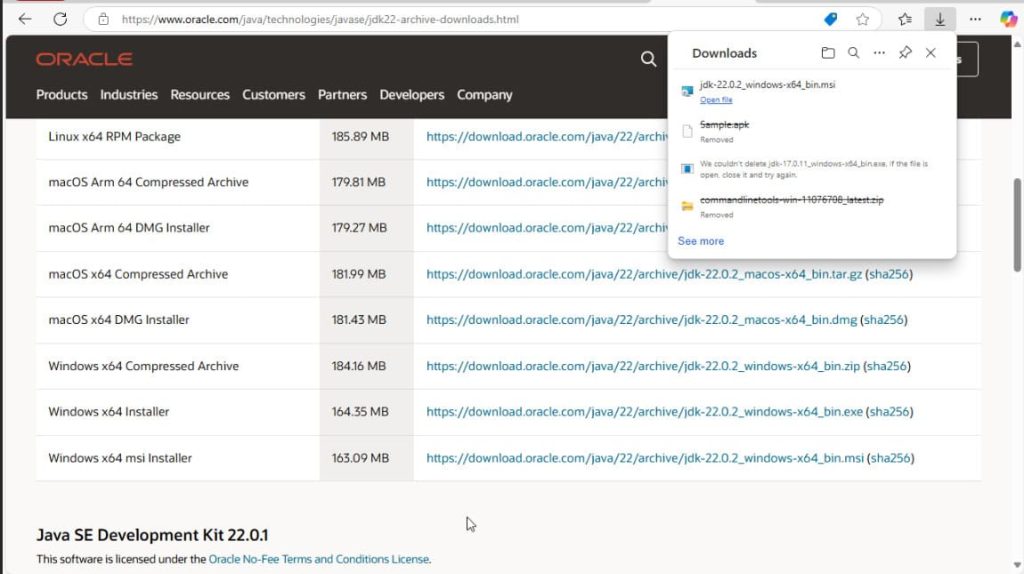
Step 1: Install Java 22 from Oracle’s official site and follow the instructions in the msi file.
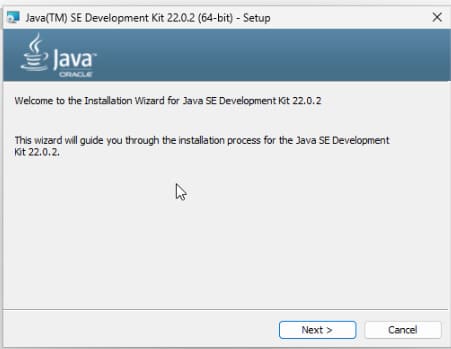
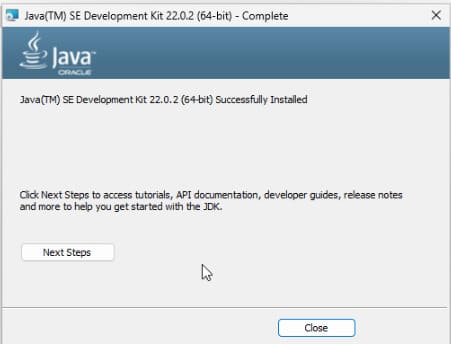
Step 2: Set Java 22 as the active version by storing the bin path in the PATH variable.
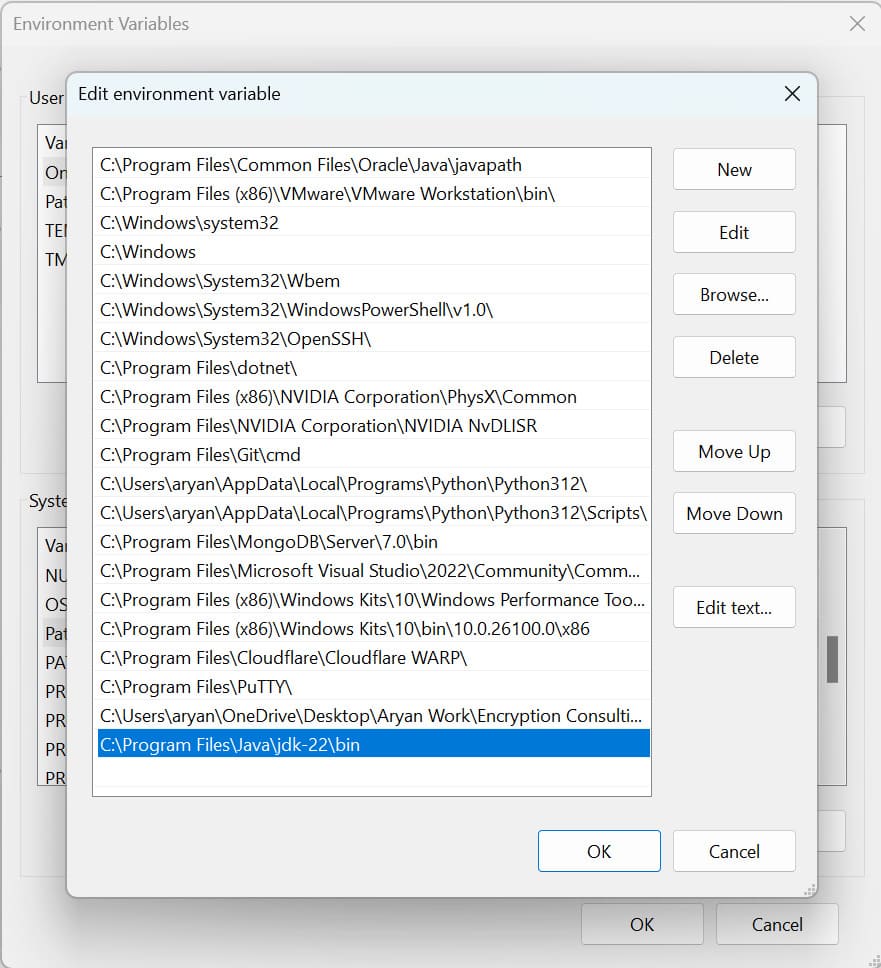
Step 3: Install the Android SDK command-line tools from this link here.
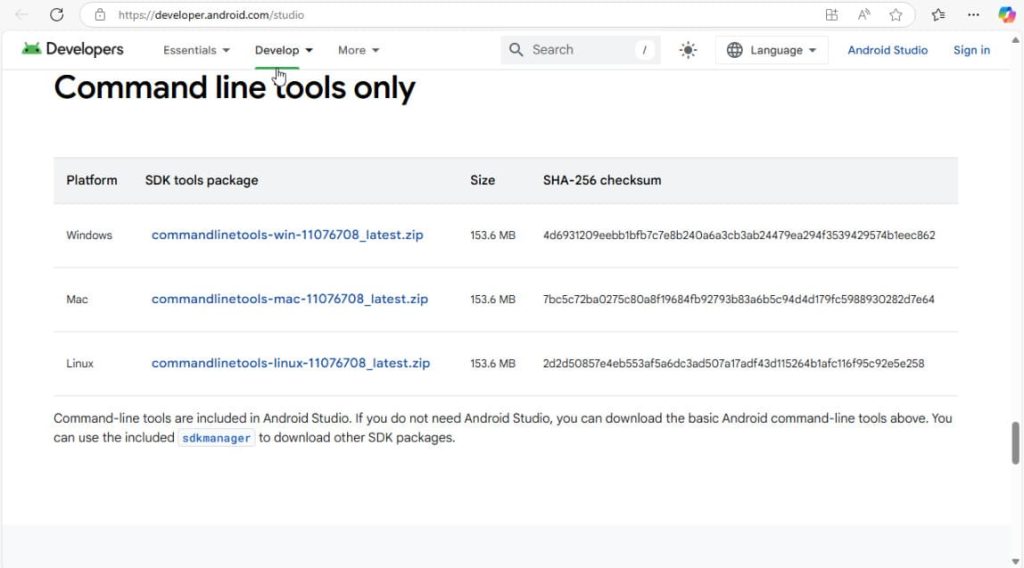
Step 4:
- Extract the files into a “cmdline-tools” folder.
- Create a subfolder named latest.
- Move the bin and lib folders into the latest folder.
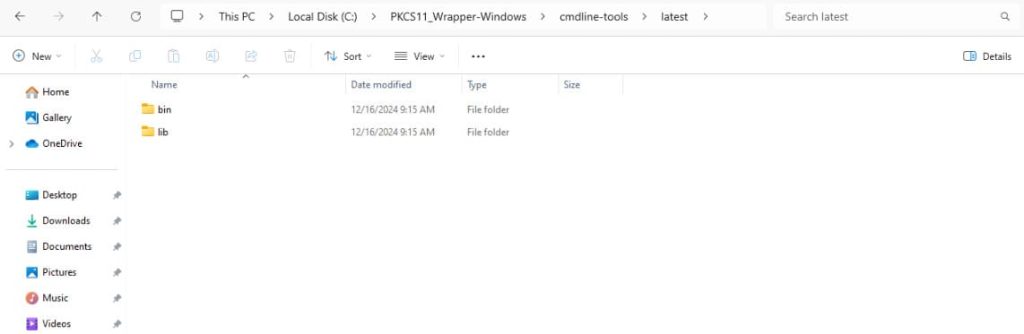
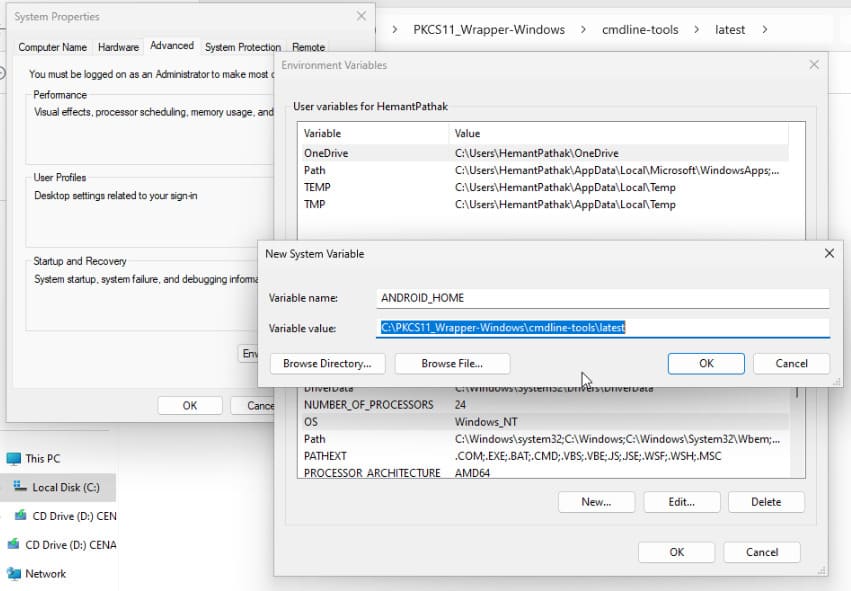
Step 5: Set an environment variable called ANDROID_HOME and set it to the path where you extracted the command line tools.
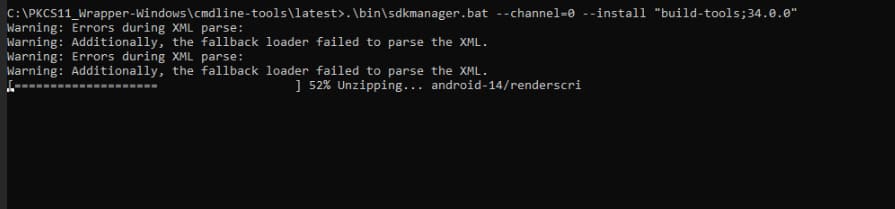
Step 6: Install Build tools using SDKManager, which contains the APKSigner: .\bin\sdkmanager –channel=0 –install “build-tools;34.0.0”
Step 7: Ensure that APKSigner is present: Apksigner.bat –version

Perform Signing and Verification using PKCS11 Wrapper
Now that all the configurations and prerequisites have been installed. Let’s perform the signing operation first.
The signing command will look something like this (ensure you run this command only inside the folder where your PKCS11 Wrapper is installed):
apksigner sign –provider-class sun.security.pkcs11.SunPKCS11 –provider-arg <path of the pkcs11properties.cfg file in your system> –ks NONE –ks-type PKCS11 –ks-pass pass:abcd1234 –ks-key-alias <private key alias> –in <path of the APK file you want to sign> –out <path of the Signed APK file>
For Example: apksigner sign –provider-class sun.security.pkcs11.SunPKCS11 –provider-arg C:\Users\riley\Downloads\PKCS11_Wrapper-Windows\pkcs11properties.cfg –ks NONE –ks-type PKCS11 –ks-pass pass:secretpassword –ks-key-alias gpg2 –in Sample.apk –out signed.apk
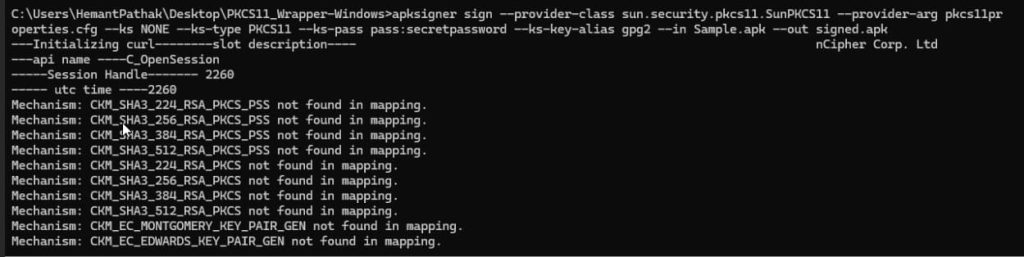
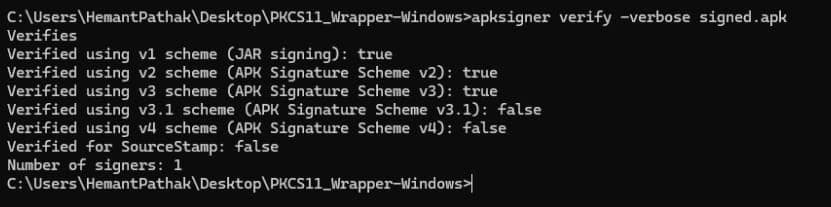
After successfully signing the APK, let’s verify it using this command:
apksigner verify -verbose <path of the signed APK file>
For example: apksigner verify -verbose signed.apk
Configuration of PKCS#11 Wrapper on Ubuntu
Prerequisites
Here are the prerequisites for using our PKCS#11 Wrapper in your system. Before starting, ensure the following are ready (you can refer to the CONFIGURING PKCS#11 WRAPPER section for the steps):
- Ubuntu Version: Ubuntu version 22.04 or later (tested environment is Ubuntu 24.02)
- Dependencies: Install liblog4cxx-dev, and curl.
- JDK: Oracle/OpenJDK 8 or higher has to be installed and configured.
Installing EC’s PKCS#11 Wrapper
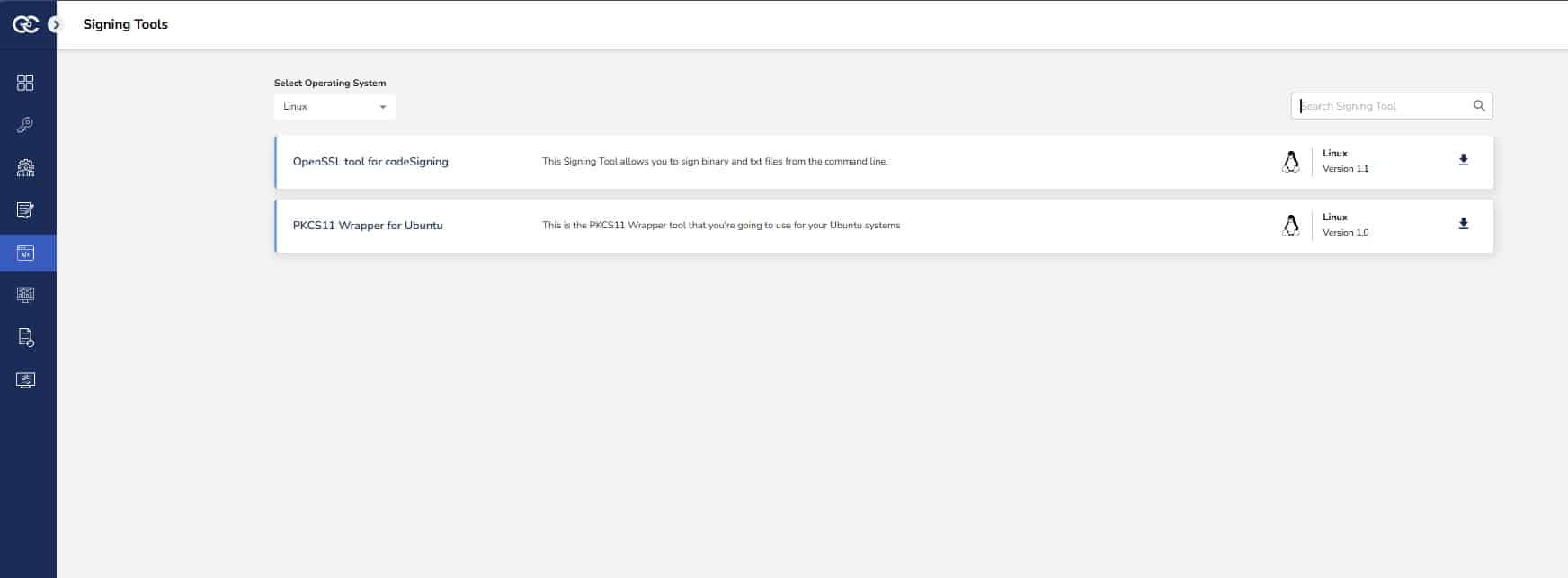
Step 1: Go to EC CodeSign Secure’s v3.01 Signing Tools section and download the PKCS#11 Wrapper for Ubuntu.
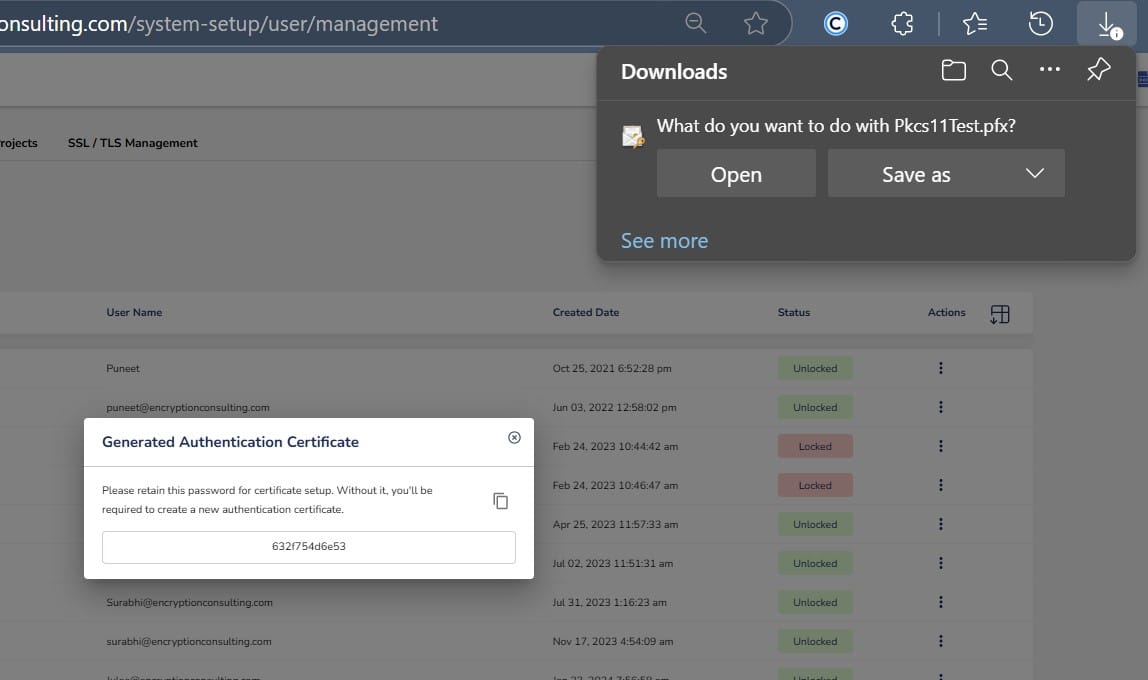
Step 2: After that, generate a P12 Authentication certificate from the System Setup > User > Generate Authentication Certificate dropdown.
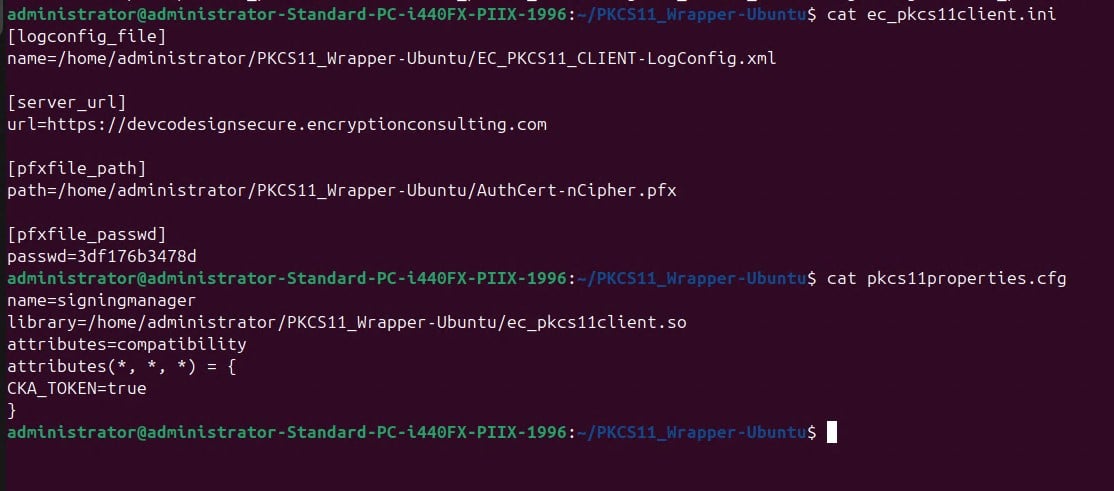
Step 3: Go to your Ubuntu client system and edit the configuration files (ec_PKCS#11client.ini and PKCS#11properties.cfg) downloaded in the PKCS#11 Wrapper.
Configuring PKCS#11 Wrapper
Now, let’s configure your client system to run the PKCS#11 Wrapper.
Step 1: Install Java 8: sudo apt install openjdk-8-jdk
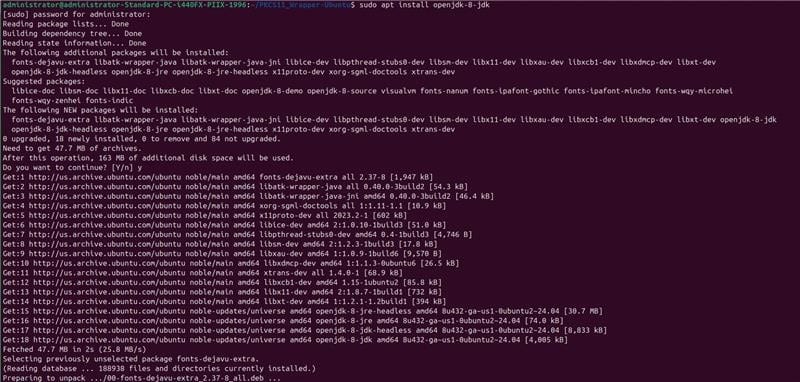
Step 2: Set Java 8 as the active version: sudo update-alternatives –config java

Step 3: Install the Android SDK command-line tools: sudo apt install google-android-cmdline-tools-13.0-installer
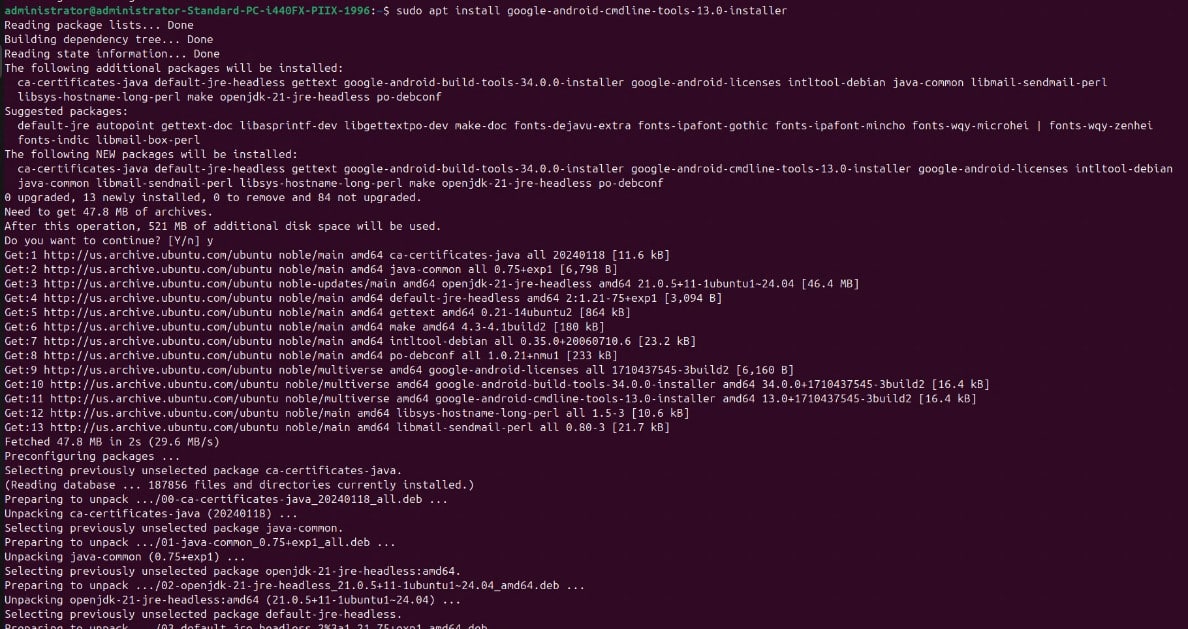
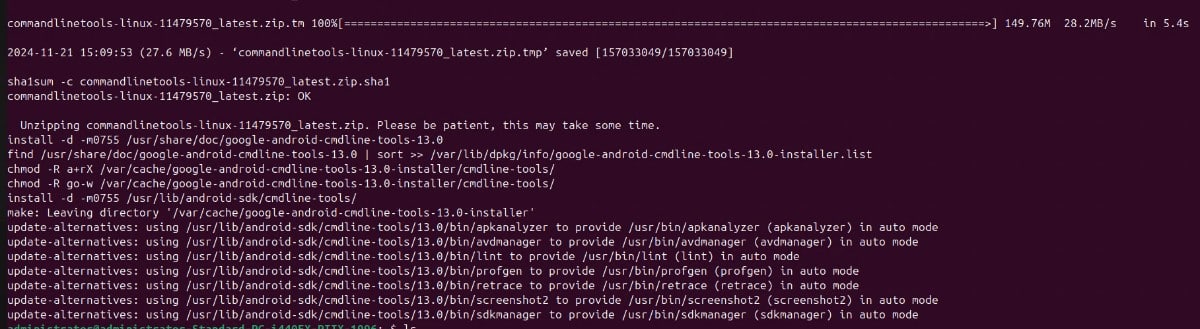
Step 4: Ensure that the SDK Manager for Android Studio has been properly installed: sdkmanager –version

Step 5: Install Build tools using SDKManager, which contains the APKSigner: sdkmanager “build-tools;34.0.0”

Step 6: Ensure that APKSigner is present: apksigner –version

Step 7: Two packages are required to run the PKCS#11 Wrapper on your system. First, install liblog4cxx-dev using: sudo apt-get install liblog4cxx-dev

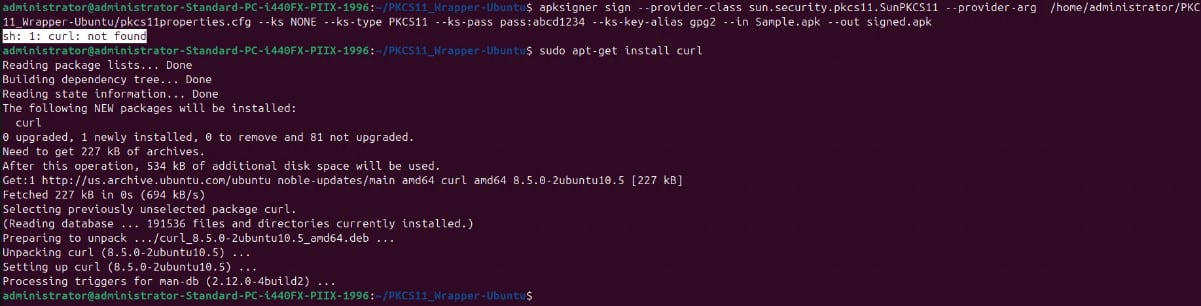
Step 8: The last prerequisite is to install the curl package: sudo apt-get install curl
Signing and Verifying an APK
Now that all the configurations and prerequisites have been installed. Let’s perform the signing operation first.
The signing command will look something like this (ensure you run this command only inside the folder where your PKCS#11 Wrapper is installed):
apksigner sign –provider-class sun.security.pkcs11.SunPKCS11 –provider-arg <path of the pkcs11properties.cfg file in your system> –ks NONE –ks-type PKCS11 –ks-pass pass:abcd1234 –ks-key-alias <private key alias> –in <path of the APK file you want to sign> –out <path of the Signed APK file>
For Example: apksigner sign –provider-class sun.security.pkcs11.SunPKCS11 –provider-arg /home/administrator/PKCS11_Wrapper-Ubuntu/pkcs11properties.cfg –ks NONE –ks-type PKCS11 –ks-pass pass:abcd1234 –ks-key-alias gpg2 –in Sample.apk –out signed.apk

After successfully signing the APK, let’s verify it using this command:
apksigner verify -verbose <path of the signed APK file>
For example: apksigner verify -verbose signed.apk

Configuration of PKCS#11 Wrapper on MacOS
Prerequisites
Here are the prerequisites for using our PKCS#11 Wrapper in your system. Before starting, ensure the following are ready (you can refer to the CONFIGURING PKCS#11 WRAPPER section for the steps):
- MacOS Version: MacOS version 13 (Ventura) or later (tested environment is MacOS 15.1 Sequoia)
- Dependencies: Install liblog4cxx-dev, and curl.
- JDK: Oracle/OpenJDK 17 or higher has to be installed and configured.
Installing EC’s PKCS#11 Wrapper
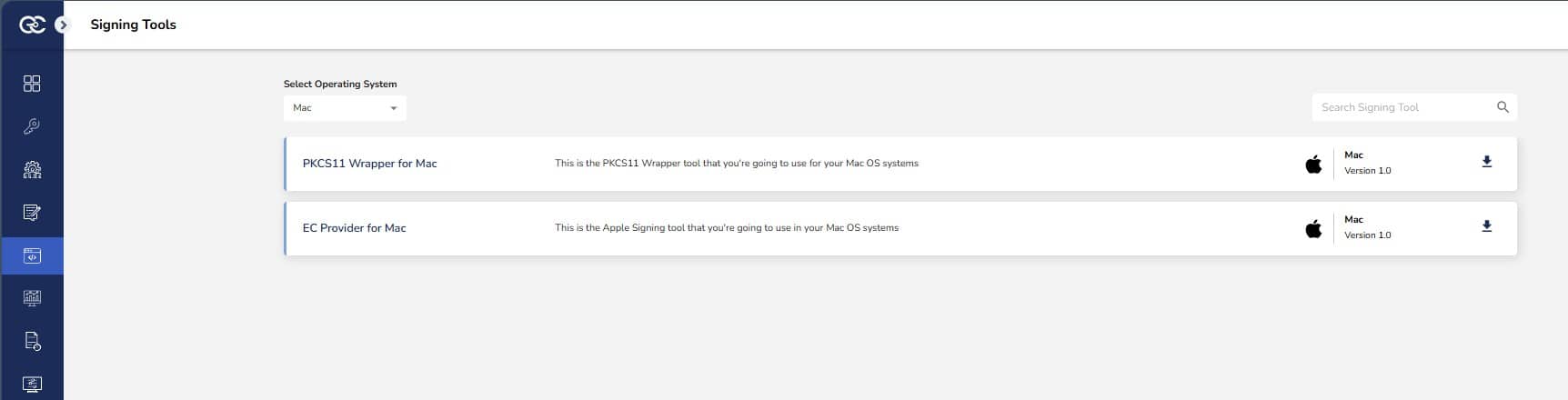
Step 1: Go to EC CodeSign Secure’s v3.01 Signing Tools section and download the PKCS11 Wrapper for MacOS.
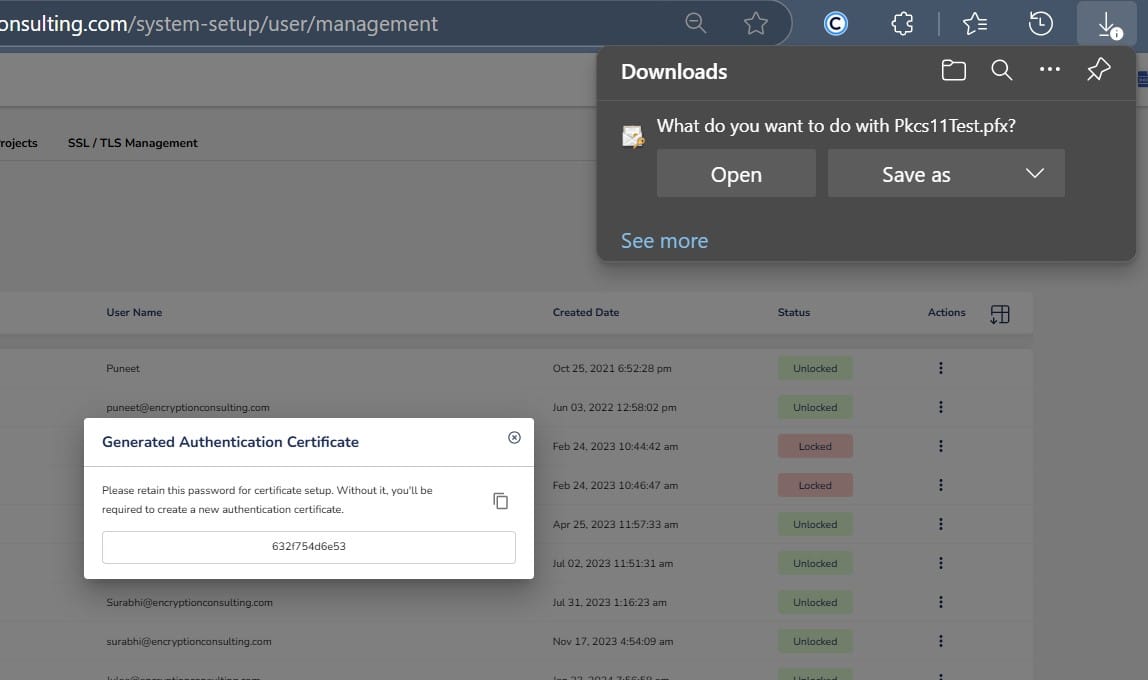
Step 2: After that, generate a P12 Authentication certificate from the System Setup > User > Generate Authentication Certificate dropdown.
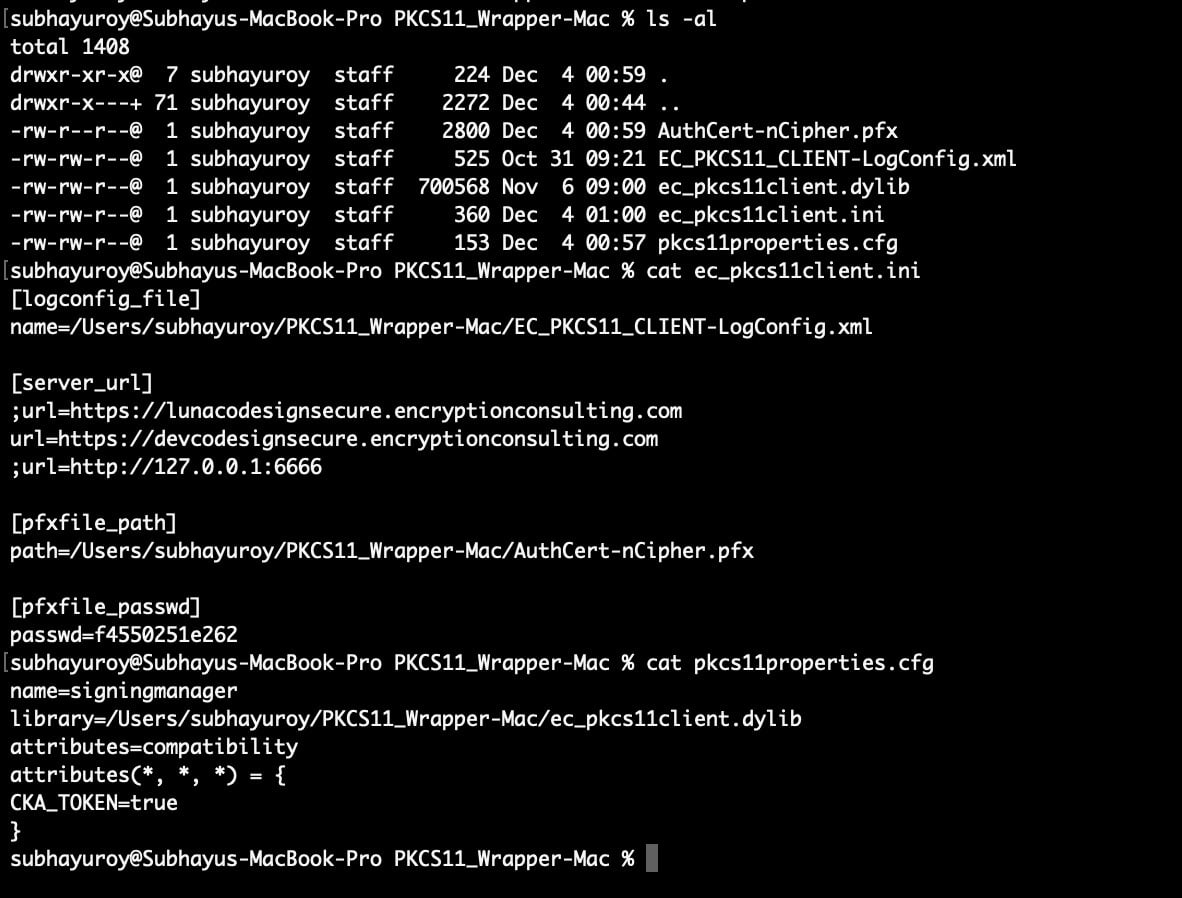
Step 3: Go to your MacOS client system and edit the configuration files (ec_pkcs11client.ini and pkcs11properties.cfg) downloaded in the PKCS11 Wrapper.
Configuring PKCS#11 Wrapper
Now, let’s configure your client system to run the PKCS11 Wrapper.
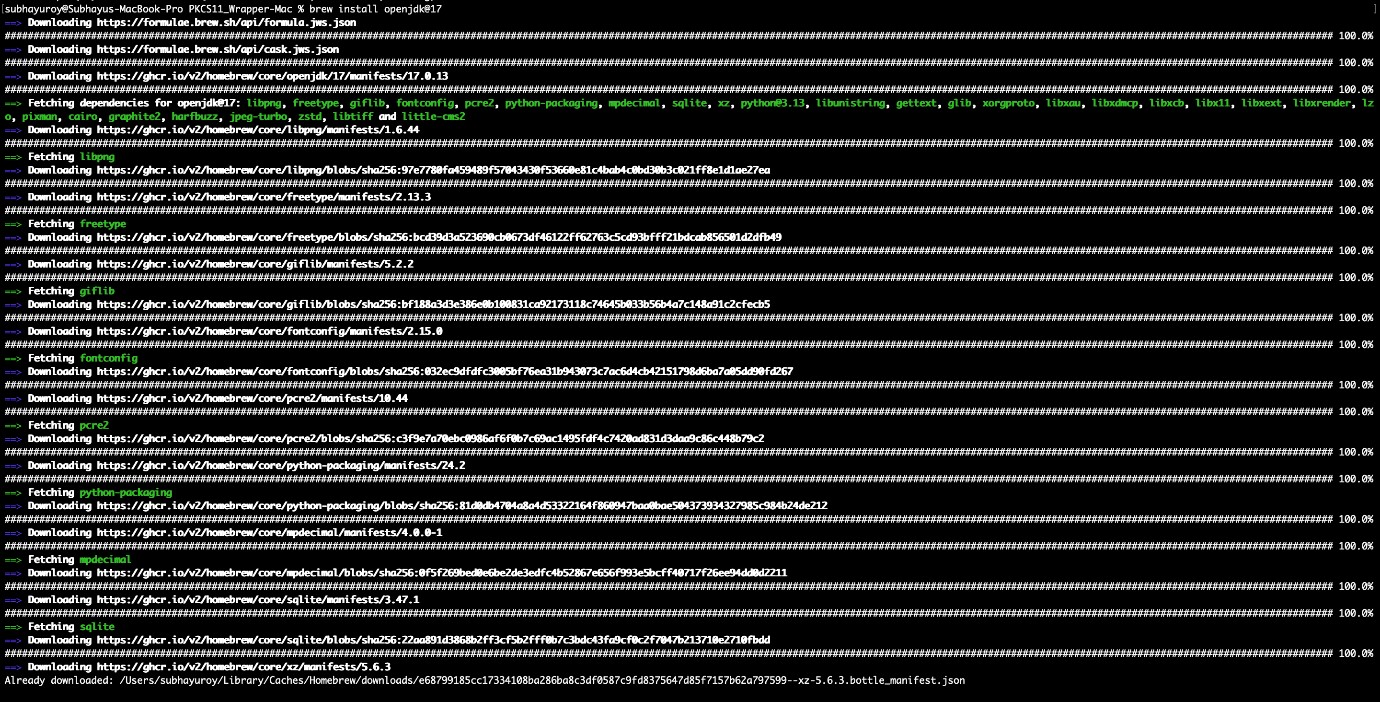
Step 1: Install Java 17: brew install openjdk@17
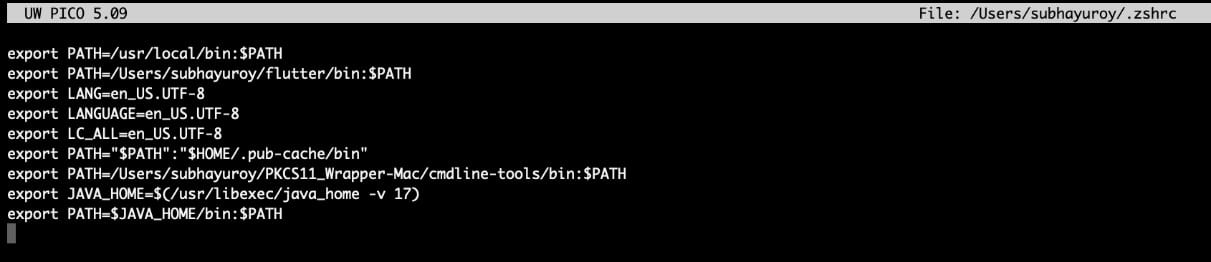
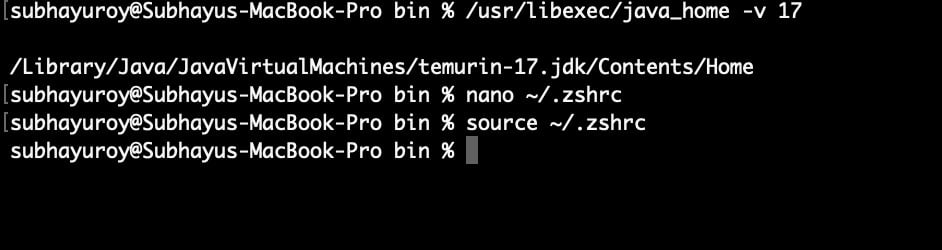
Step 2: Set Java 17 as the active version:
- For Zsh: nano ~/.zshrc
- For Bash: nano ~/.bash_profile
Add these lines: export JAVA_HOME=$(/usr/libexec/java_home -v 17)
export PATH=$JAVA_HOME/bin:$PATH
And then run: source ~/.zshrc # or ~/.bash_profile
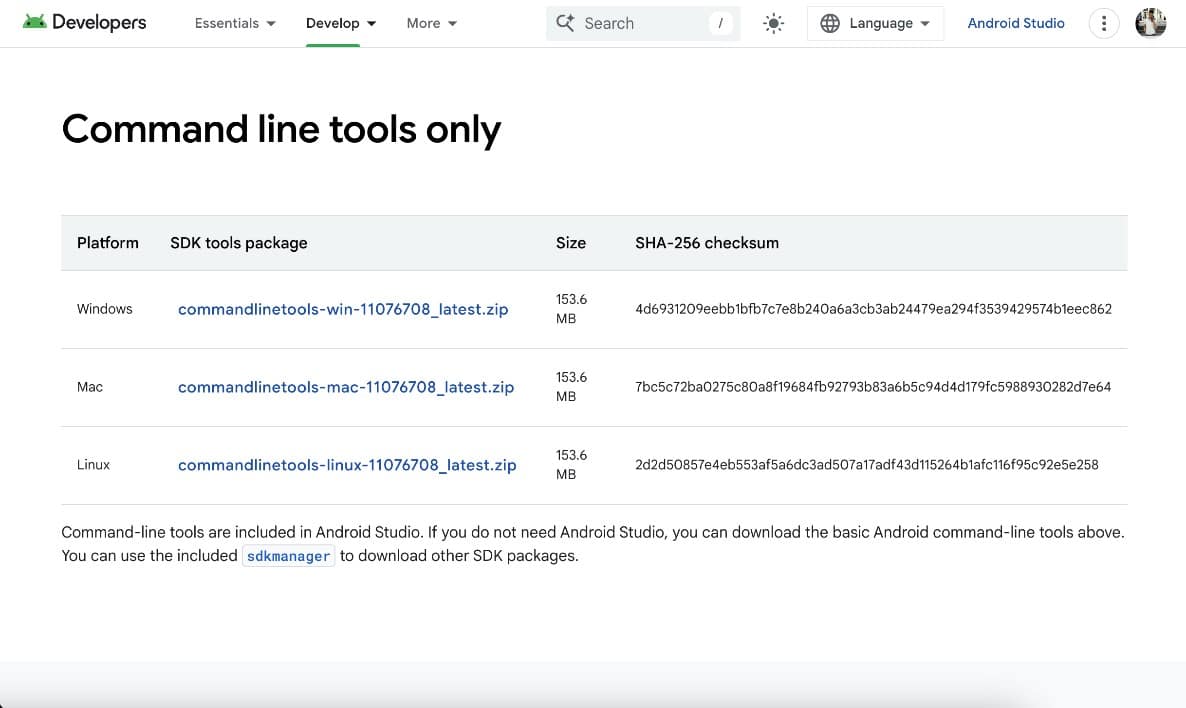
Step 3: Install the Android SDK command-line tools from this site.
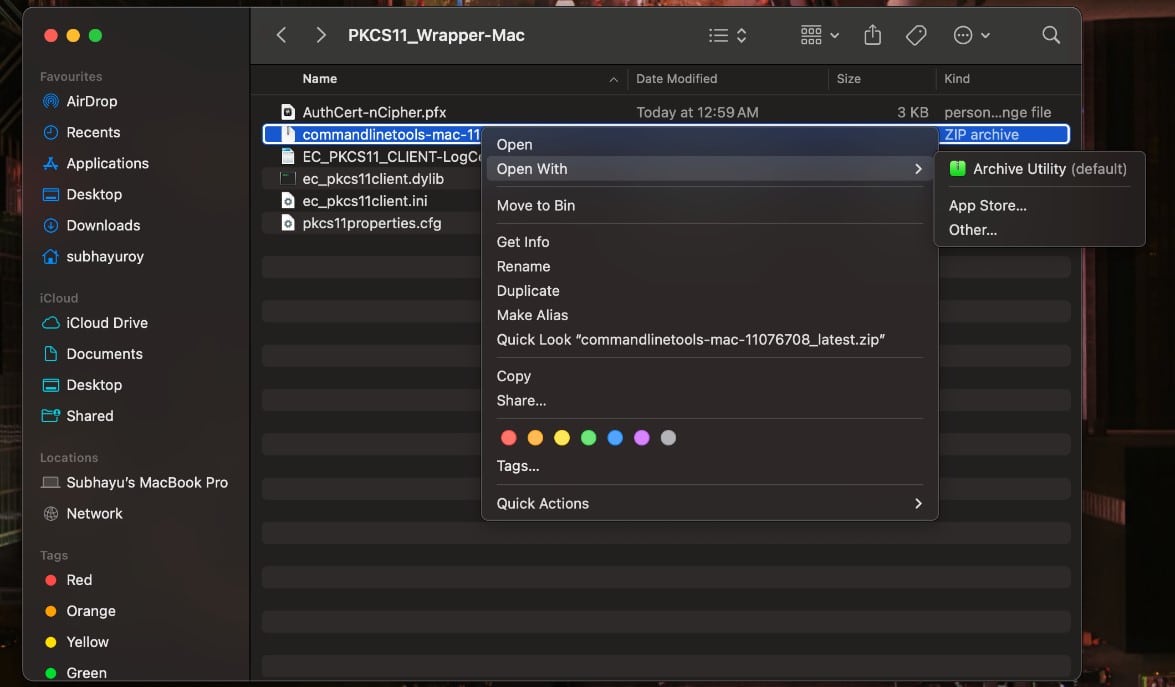
Step 4: Ensure that the SDK Manager for Android Studio has been properly installed: sdkmanager –sdk_root=/Users/subhayuroy/PKCS11_Wrapper-Mac –version

Step 5: Install Build tools using SDKManager, which contains the APKSigner: sdkmanager –sdk_root=/Users/subhayuroy/PKCS11_Wrapper-Mac “build-tools;34.0.0”
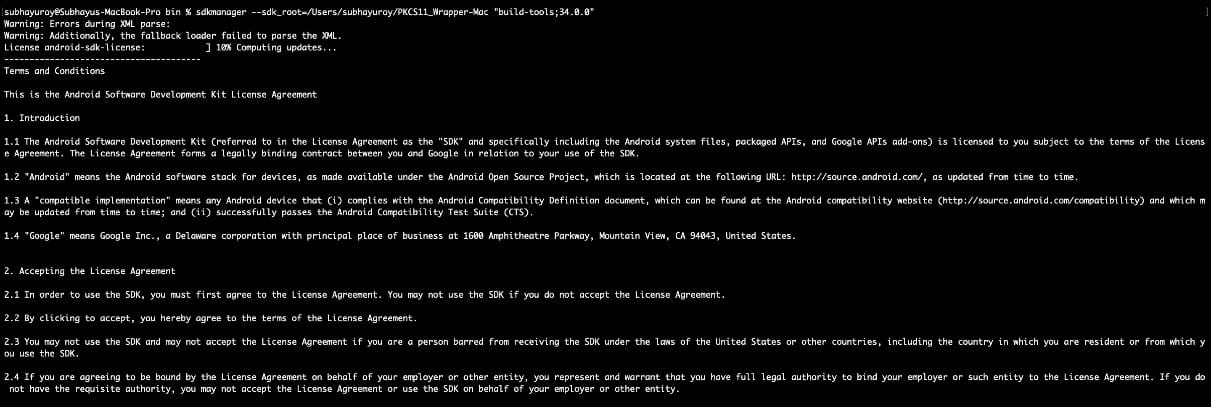

Step 6: Ensure that APKSigner is present: ls /Users/subhayuroy/PKCS11_Wrapper-Mac/build-tools/34.0.0/apksigner

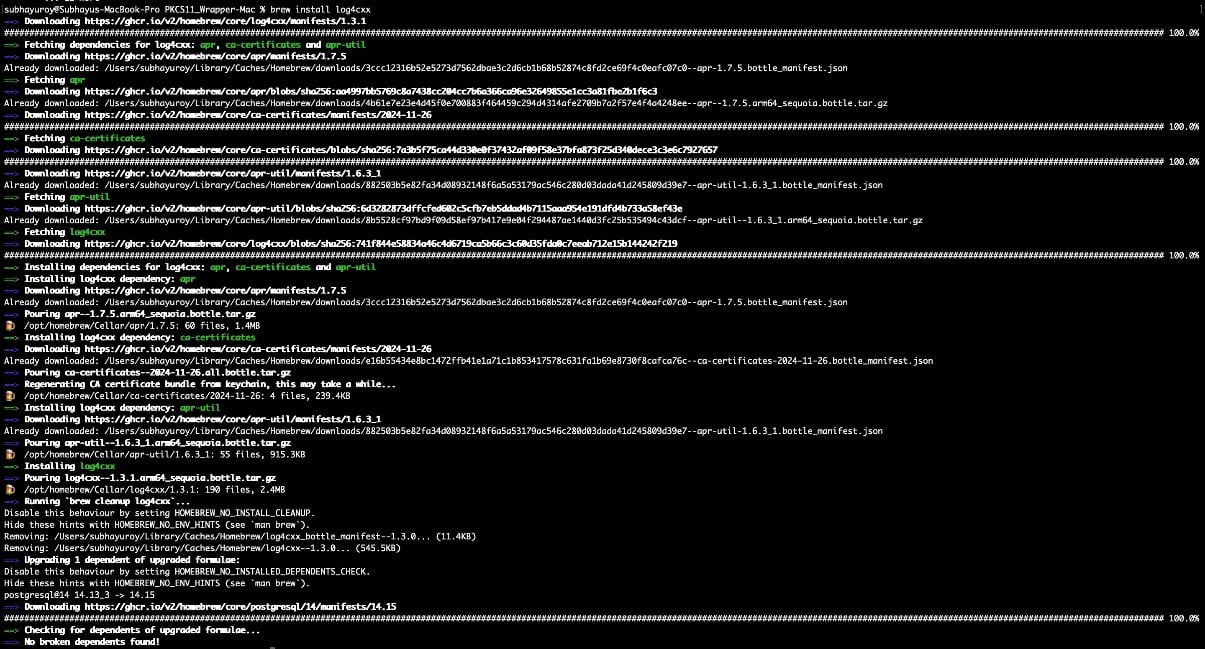
Step 7: Two packages are required to run the PKCS11 Wrapper on your system. First, install liblog4cxx-dev using: brew install log4cxx
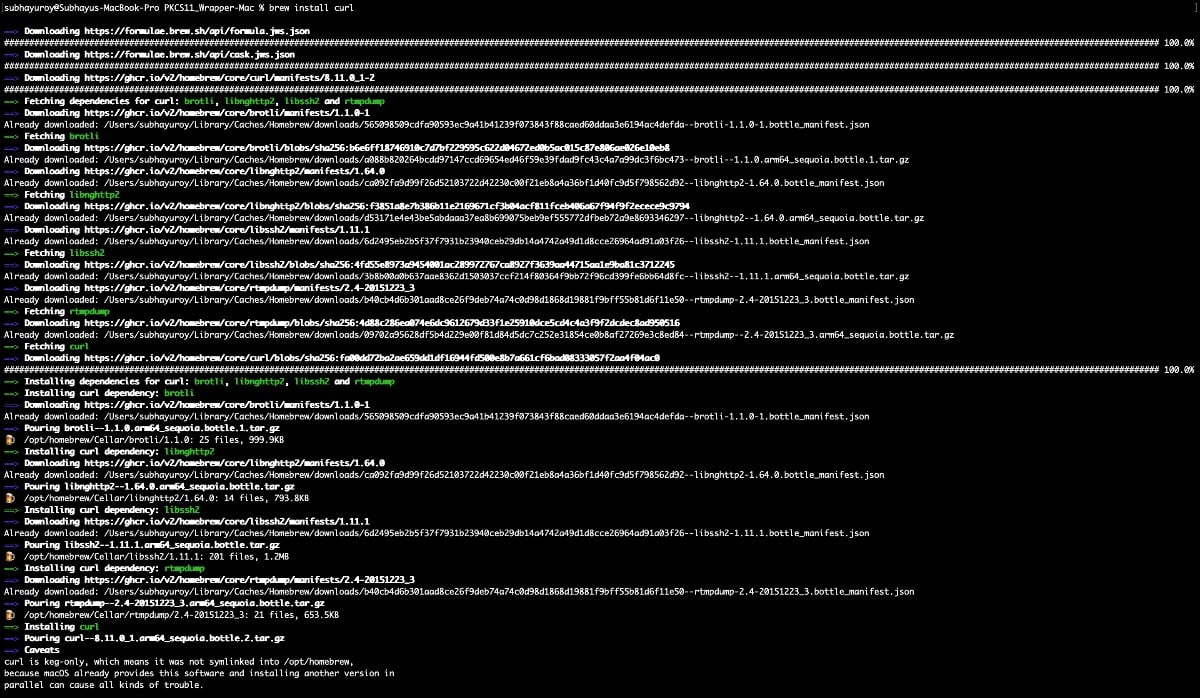
Step 8: The last prerequisite is to install the curl package: brew install curl
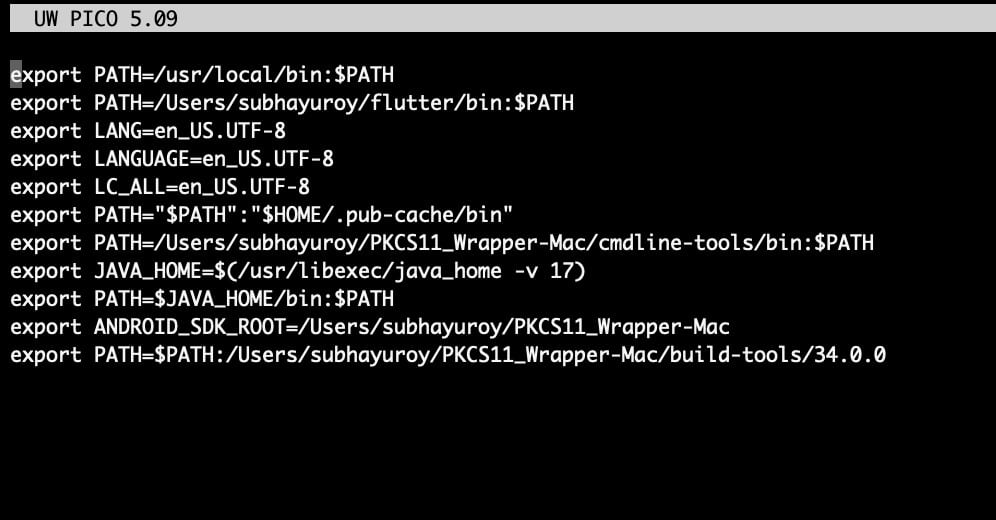
Step 9: You need to ensure all the relative paths are added to your PATH variable (~/.zshrc file):
export PATH=/Users/subhayuroy/PKCS11_Wrapper-Mac/cmdline-tools/bin:$PATH
export JAVA_HOME=$(/usr/libexec/java_home -v 17)
export PATH=$JAVA_HOME/bin:$PATH
export ANDROID_SDK_ROOT=/Users/subhayuroy/PKCS11_Wrapper-Mac
export PATH=$PATH:/Users/subhayuroy/PKCS11_Wrapper-Mac/build-tools/34.0.0
Signing and Verifying an APK
Now that all the configurations and prerequisites have been installed. Let’s perform the signing operation first.
The signing command will look something like this (ensure you run this command only inside the folder where your PKCS11 Wrapper is installed):
java –add-exports=jdk.crypto.cryptoki/sun.security.pkcs11=ALL-UNNAMED -jar <path of the apksigner.jar in your system> sign –provider-class sun.security.pkcs11.SunPKCS11 –provider-arg <path of the pkcs11properties.cfg file in your system> –ks NONE –ks-type PKCS11 –ks-pass pass:abcd1234 –ks-key-alias <private key alias> –in <path of the APK file you want to sign> –out <path of the Signed APK file>
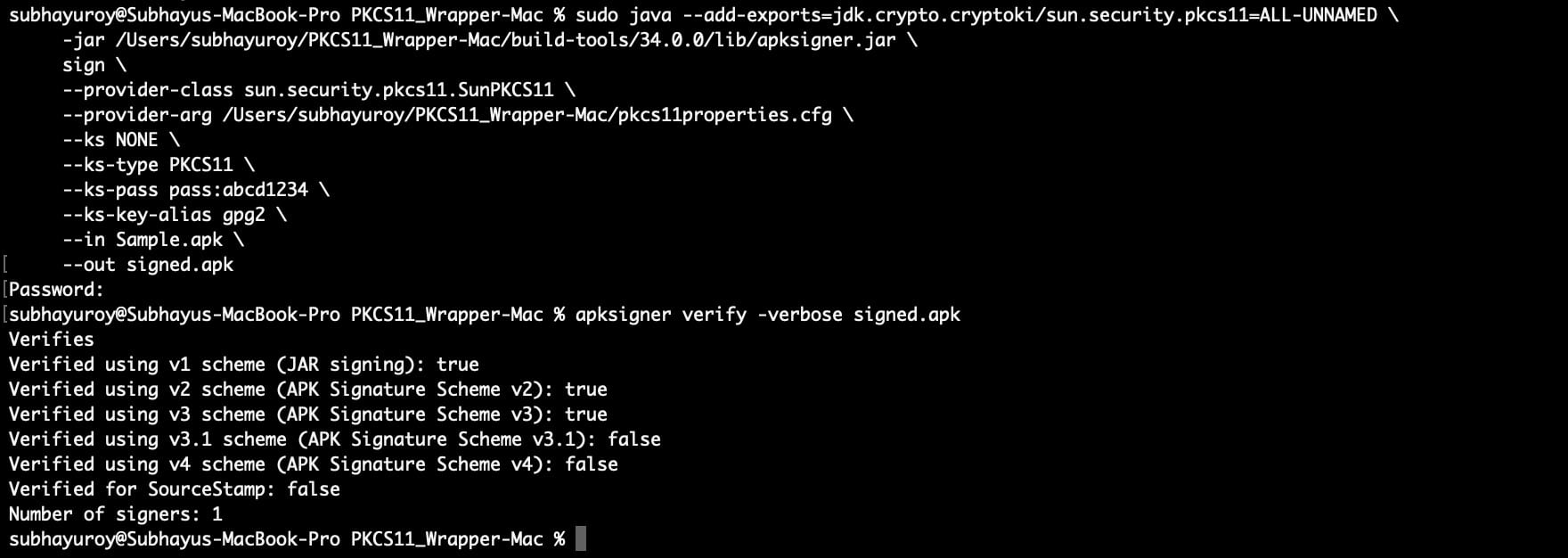
For Example: java –add-exports=jdk.crypto.cryptoki/sun.security.pkcs11=ALL-UNNAMED \ -jar /Users/subhayuroy/PKCS11_Wrapper-Mac/build-tools/34.0.0/lib/apksigner.jar \ sign \ –provider-class sun.security.pkcs11.SunPKCS11 \ –provider-arg /Users/subhayuroy/PKCS11_Wrapper-Mac/pkcs11properties.cfg \ –ks NONE \ –ks-type PKCS11 \ –ks-pass pass:abcd1234 \ –ks-key-alias gpg2 \ –in Sample.apk \ –out signed.apk

After successfully signing the APK, let’s verify it using this command:
apksigner verify -verbose <path of the signed APK file>
For example: apksigner verify -verbose signed.apk
Common Errors
| Error | Likely Cause | Fix |
|---|---|---|
| ClassNotFoundException on sun.security.pkcs11.SunPKCS11 | Typo in the provider class name, most commonly inserting a # character | Confirm the class name is exactly sun.security.pkcs11.SunPKCS11, no # anywhere |
| apksigner verify reports the APK is not signed | –out path from the sign command doesn’t match the –in path used for verification | Confirm both commands reference the same output file |
| UnsatisfiedLinkError or provider-related failure on macOS specifically | apksigner invoked directly instead of via java –add-exports | Use the full java –add-exports=jdk.crypto.cryptoki/sun.security.pkcs11=ALL-UNNAMED -jar <path to apksigner.jar> invocation on macOS |
CI/CD Use and Cleanup
For repeated signing in a pipeline, run the sign command followed immediately by apksigner verify -verbose against its own output, and fail the build step if verification doesn’t pass, rather than publishing an unverified APK. Since the private key never leaves the HSM, there’s no key material to clean up locally after signing; the P12 authentication certificate used to connect to CodeSign Secure is the only credential present on the build agent, and should be removed if the agent is shared across teams or decommissioned.
Frequently Asked Questions
–provider-class specifies an actual Java class that must be loadable on the classpath. A wrong or malformed name (such as one containing a # character) causes a ClassNotFoundException, not a warning, because Java is looking for a class that doesn’t exist under that name.
Apple’s JDK module system restricts access to the internal PKCS#11 module by default. The –add-exports flag explicitly opens that module for the apksigner.jar invocation; Windows and Ubuntu’s Java distributions used in this guide don’t require the same explicit export.
Conclusion
Our PKCS#11 Wrapper offers unmatched performance, including client-side hashing for faster performance and smooth integration into your existing workflows. Using our code signing solution – CodeSign Secure v3.01, you can trust end users and securely secure your apps.
By working with Encryption Consulting, you are investing in a solution that is trusted by developers and organizations worldwide to protect their software supply chain rather than just picking a tool. This is your opportunity to use our code signing technologies to advance your APK signing.
Visit our official website or get in touch with our support staff for more details or help.

Every Layer of Cryptography.
One Team to Secure It.
See how Encryption Consulting secures what your enterprise depends on, from assessment through deployment.
Request a Demo